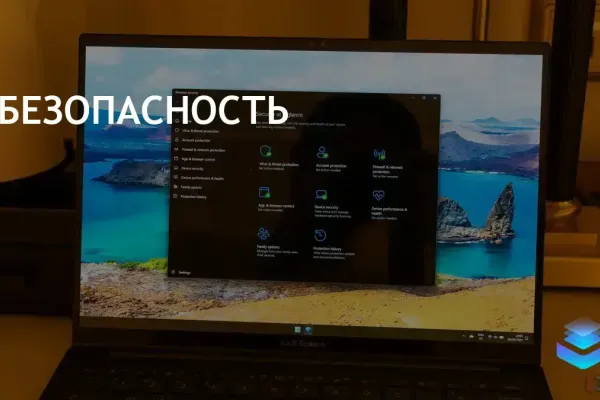
Put a brand-new laptop or desktop PC in front of most people and they’ll begin installing their favorite programs. Me? I check out its security setup. That’s not just making sure basics like antivirus is active. I also look at Windows and installed apps to make sure the whole computer is configured to protect data and prevent unauthorized access. Here are four things I always check on a new PC. 1) Antivirus software The first thing to review is the antivirus app and its settings. Some PCs use Windows Security, others include third-party antivirus trials. Windows Security runs quietly and is fine for many users, but third-party apps often provide more features and control. Immediately enable ransomware protection, app & browser protections, and verify core isolation. Choose the AV that fits the user’s preference for notifications, features, and budget. 2) Password manager Set up a password manager. Built-in browser password managers are convenient but tie passwords to a Microsoft or Google account, which can be risky if that account is compromised. I recommend independent services like Bitwarden or Dashlane, or a local option such as KeePassXC if you manage backups. Prefer installing a desktop app for added security; browser extensions are convenient but can be more vulnerable. The goal is to use unique, strong passwords across sites. 3) Biometric login Enable Windows Hello biometric login when possible. Laptops often include Hello-compatible webcams for face recognition; desktops may need an external webcam or fingerprint reader. Biometric login is generally more secure and convenient than a password or PIN and helps prevent shoulder-surfing. Keep a secure password backup, then use biometrics for day-to-day access. 4) Disk encryption Verify disk encryption is enabled, especially for laptops and easily stolen mini-PCs. If data is encrypted, it’s much harder for thieves to access sensitive files. Windows with a Microsoft account should enable disk encryption automatically, but it’s worth checking. On Windows Pro, use BitLocker and back up your recovery key. You can check for a saved recovery key at https://aka.ms/myrecoverykey or back it up via BitLocker settings. Author: Alaina Yee, Senior Editor, PCWorld. A technology and games journalist focusing on security and practical advice for protecting PCs online.